

For years we’ve told you the same thing about phishing. Don’t type your password into a link you didn’t expect, and turn on multi-factor authentication so that even if you slip, the bad guys still can’t get in. That advice is still right. But attackers have found a way around it, and it doesn’t involve stealing your password at all. It involves asking you, politely, for permission.
How it works
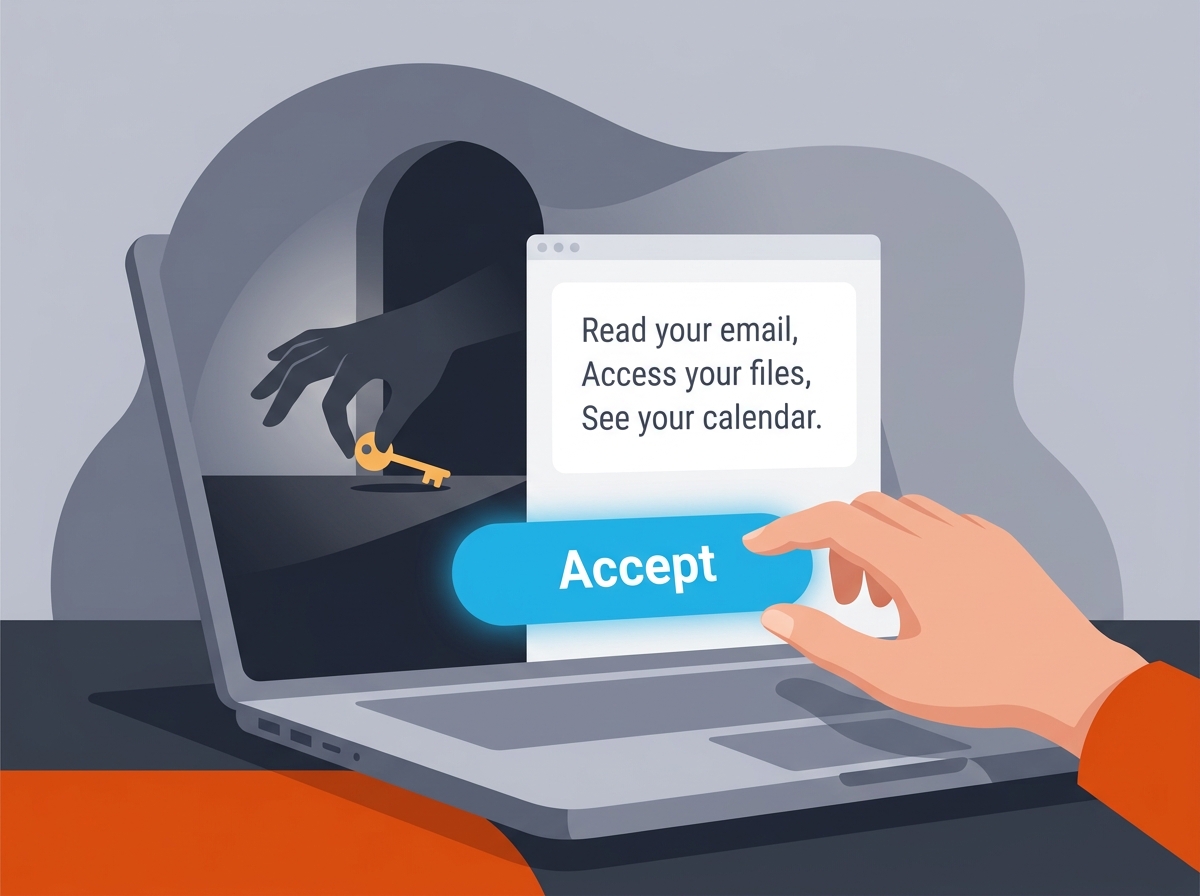
You’ve seen the screen a hundred times. An app wants to connect to your Microsoft account and shows you a list like “read your email,” “access your files,” “see your calendar,” with a big blue Accept button. Every meeting-notes tool, AI assistant, and browser extension pops one of these up. We’ve all been trained to click Accept the same way we click “accept cookies” on a website, without really reading it.
That’s the trick. A scammer sends you an email with a link, or a short code to type in at a real Microsoft page. You sign in on the real Microsoft site, you do your real MFA, and then you click Accept on what looks like a routine permissions screen. Nothing was faked. Microsoft did exactly what you told it to do, which was hand a stranger’s app a key to your mailbox.
The scary part is what happens next. That key keeps working even after you change your password. Earlier this year one of these kits compromised over 340 Microsoft 365 organizations in about five weeks, and the tokens it collected stayed valid for weeks or months, surviving password resets, because nobody knew to revoke them. MFA never had a chance to stop it, because MFA already happened. You passed it yourself. thehackernews
What to do
Slow down on the Accept button. Treat a permissions screen like a stranger asking to borrow your house key, because that’s what it is. If you didn’t go looking for that app five minutes ago, don’t approve it.
Never type a code into microsoft.com/devicelogin because an email or text asked you to. That page is real, but the only time you should ever use it is when you started the process yourself on a device like a TV or a printer. If a message tells you to go there, it’s a scam. Every time.
If an app you actually want asks for permission, read the list. “Read your email” means every email you can see, including shared mailboxes. If a to-do app wants your mailbox, that’s a red flag.
When in doubt, forward it to us. We’d rather answer twenty “is this legit?” emails than clean up one mailbox that’s been quietly read for a month.
What not to do
Don’t assume MFA has your back on this one. It’s still essential, and you should still use it, but it protects your sign-in, not the permissions you hand out after you’re in.
Don’t assume changing your password fixes it. If you think you approved something you shouldn’t have, tell us right away so we can revoke the app itself. Changing the password alone leaves the door open.
What we’re doing about it
On our end, we’re locking down which apps can be approved in your environment so that anything new has to come through us for review, and we’re monitoring for new app permissions the same way we monitor for suspicious logins. That means you might occasionally see “an administrator needs to approve this” when you try to connect a new tool. That’s not us being difficult. That’s the whole point.
The best security tool in the building is still the person who pauses for two seconds before clicking Accept. Be that person.